This section refers to using Skype software (the Skype soft phone program you install on your computer) for Voicent Agent Dialer. Though it is possible to use it for Agent Dialer, using Skype soft phone is not recommended for predictive dialing. Comparing with VOIP/SIP predictive dialing, the main disadvantage of Skype predictive dialing is audio quality and initial response time.
The good news is that Skype has a VOIP/SIP based service called SkypeConnect, which is Skype's standard based service for business users. Using SkypeConnect for Voicent software avoids the problems mentioned above and it is thus stronly recommended. Please click the link to see Use Skype Connect For Voicent Software.
The rest of this article only refers to setting up Skype soft phone software for Voicent.
Please follow the Quick Start Guide to install Voicent Gateway and AgentDialer software. The Quick Start Guide can be opened from Windows Start Button > All Programs > Voicent.
Please see skype for more instructions on installing Skype software. After you install Skype, you should try to make a few phone calls to make sure it works. To call landline or cell phone, you need SkypeOut credit.
Restart Voicent Gateway to connect to Skype. Start Skype and sign in, then restart Voicent Gateway to connect to the running Skype instance. Please set “allow this program to use Skype” when prompted by Skype.
Open Voicent AgentDialer,
enter phone numbers, such as your cell phone number, in the
Phone column. Please note you need to specify 1 for US phone
number, where 1 is the country code. (You could set the
dialing rule to automatically add 1. Please set it from the
Outbound tab under Voicent Gateway main menu > Setup >
Options) To specify a sip or skype account, please use sip:
or skype:
as the prefix, such as skype:echo123.
To start predictive dialing, please select Predictive
from the program main menu, then select Start
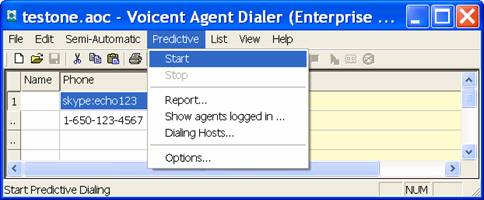
When your phone rings, answer the call and say “hello”.
You should see the following popup screen:
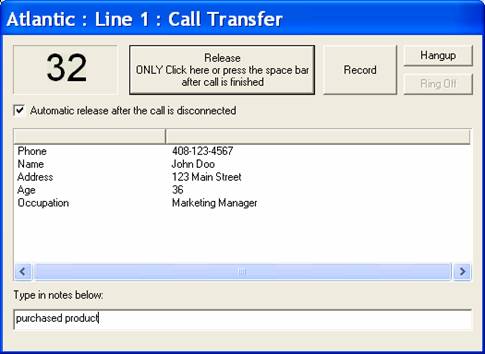
Once you see this popup screen, the phone call is connected to the computer and is ready for conversation. If you selected “Automatic release after the call is disconnected”, this dialog window will automatically close when either party hangs up the phone.
It is very important to have a good quality headset for the phone call. A lot of cheap microphones catch background noises and generate static. If you experience poor audio quality during the call, the best thing to do is to use a better headset. We recommend Creative HS-600 noise canceling headset, which is Skype certified.
To fine tune the audio for the headset, please select Windows control panel > Sound and Audio Devices
Each running Skype instance acts as a single phone line. To have simultaneous calls, you must run multiple Skype instances. Unfortunately Skype is limited to run only one instance under the same Windows user account. In order to run multiple Skype instances, you must set up multiple Windows user accounts.
You can add a new Windows user from Windows Control Panel, under User accounts.
You can use the same Skype user account for the different Windows user accounts. But it is not required. You can use different Skype account also.
Windows Vista and Windows 7
Windows Vista and Windows 7 is more restrictive in terms of security. You must do the following to start multiple Skype instances:
Window XP
You can use the steps listed for Windows Vista to run multiple Skype instances. But since Windows XP is less restrictive than Vista, you can run multiple Skype instances under the same login session.
Select Windows Start > Run… Type in the following command
runas /user:username "C:\Program Files\Skype\Phone\Skype.exe"
where username is the
Windows user account name