There are several methods to record your audio message.
In terms of sound quality, a professional recording studio is the best. They have the best recording equipment and highly trained voice talents. Today, you can find great voice talent online (such as voice123.com). They usually offer reasonable prices.
Telephone recording also produces good quality. If you do not want to use a professional recording studio, we recommend that you use telephone recording.
Microphone recording tends to pickup background noises.
The Text-to-Speech engine-generated computer voice is another way to ensure a quality audio message. There will be no background noise because it is a computer-generated voice. Please click the following to hear the samples:
Male (Neospeech Paul) voice
Female (Neospeech Kate) voice
IMPORTANT: Please make sure that you do not have any silence in the beginning of your recording. The silence is likely to cause people to hang up.
The standard audio format for telephone is: PCM 8 KHz, 16 bit, mono. No other format, such as stereo sound, can be played over the telephone network. This format is determined by the telephone communication standard. Neither Voicent nor any other software vendors can change that.
Since the telephony audio format is fixed, as explained in the previous question, there is no way to improve the audio quality by using a better audio format. For example, if your audio is recorded as stereo voice, it won't help since the telephone audio and your regular telephone are not capable of playing stereo audio.
The best you can do is to use a professional recording studio. Choose a voice talent whose voice is clear over the telephone line. Also make sure to ask them to give you the recording in the format of PCM 8 KHz, 16 bit, mono. If you try to convert it yourself, you will introduce hisses and noises.
If you have to record yourself, choose a quiet room and use a good quality microphone. Please note that you will hear more background noise and static over the phone than over the computer speaker, even though you are using the same audio file. Use a noise canceling headset, like the one mentioned below, will help to improve audio recording quality in some degree.
Telephone recording also produces decent quality. If you use VOIP, please make sure you have a reliable internet connection with enough bandwidth. If you are calling from a soft phone software, please use a good quality computer headset, such as Creative HS-600 noise canceling headset.
If you use analog phone line, please make sure you have a clear telephone line.
It is also possible to improve audio quality by using some audio editing software, such as goldwave. If you need help using these tools, please contact the support of the audio software vendor.
One audio file converter program is "Weeny Free Audio Converter". You can use the program to convert your audio file to the required format.
You can also use a wave file editing software, such as a shareware software called Goldwave, to convert audio file format. You can download Goldwave program from the Internet.
On older windows, you can use Windows Sound Recorder to do the format conversion. But for newer Windows, like Vista or Windows 7, somehow the audio converstion feature is no longer supported.
From Voicent Gateway main window, select Operation > Recording… to invoke the recording dialog. Click the Save As button to select the recording file name. Then Click OK. (You can invoke this from BroadcastByPhone or AgentDialer also). Click the Video link to see a demo.
Once you click the Record Now button, Voicent Gateway is set for accepting in-bound phone calls for telephone recording.
If you use SIP based VOIP, and you have an incoming number for your VOIP service, you can call your incoming number to record.
If you use Skype, and have SkypeIn number, call the SkypeIn number from any telephone.
Click here to learn more about SkypeIn number.
If you do not have an incoming number of your SIP account, you must call your SIP account from another computer using a SIP soft phone. If you do not have SkypeIn number for your Skype account, you must call your Skype account from another computer, using another Skype account. In both cases, you must use a good quality computer headset with your soft phone program.
If you use voice modem, you will need two phones to do the recording. One phone line is the used by your voice modem, and the other for calling into the modem line. Call the phone number of the voice modem line.
After Voicent Gateway picks up the call, simply follow the voice prompt to record your message. The recording message will be saved in the file you specified in the previous step.
The message volume depends on a few factors:
1. The recording volume when your record your audio message
2. The modem playing volume
3. The handset volume of the person receiving the call
The biggest issue is number 3, because there is a wide range of the settings depending on personal choice. The volume of your message should set for the majority of your target audience.
The modem playing volume is fixed and cannot be changed.
So, the best thing to do to increase the outgoing message volume is to increase the volume when recording your message.
You can also use a wave file editor (such as GoldWave) to increase the volume. But if your recording has background noise, the noise will be amplified as the volum,e is increased. Of course, you can use the same editor to remove noises.
You must use audio recording software, such as the shareware program called Goldwave. Follow the program instructions to record.
The important factor is to record in the telephony format PCM 8 KHz, 16 bit, mono. If you try to convert the audio format after the recording is done, you may introduce static in the audio files.
Professional recording studios provides the best sound quality. There are many providers on the internet. Simply search on Google for "voice talent."
Playing audio over the computer microphone and over the telephone line is very different. Please make sure to ask your recording studio to:
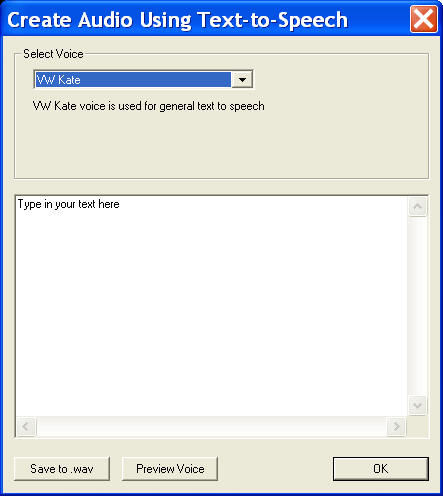
Click on the Voicent Gateway icon, then select Save Text-to-Speech Audio to file. Select the voice you want to use for your recording. Microsoft Windows offers free TTS voices. On Vista, it is called "Microsoft Anna," but you should be able to use most other commercial TTS voices.