
IVR Studio: Inbound IVR
You could print out information during any part of the call flow. For example, you can print out the current value of a variable, last caller entered keys, and any other information specific for your application.
In this sample, the system logs caller's answer to a question..
You can open this design by selecting Library > Log Information from the program main menu.
The Call Flow
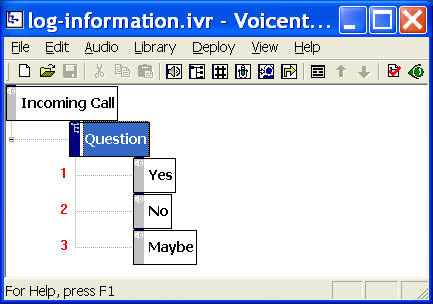
The call flow consists of choice element (Question) and prompt elements (Yes, No, Maybe).
The Log Action
An action is used to "do something", such as print out some information, change the variable value, run a Java command, and run an HTTP command. Sample Password Protected Info contains the Set Variable action. In this sample, we use the Log Action. An Log action simply prints out some information to the application log file.
To define a new action for an element, select the element, then click on the Properties button on the toolbar (Or select Edit > Properties... from the program main menu), choose the Action tab. Click the New... button.
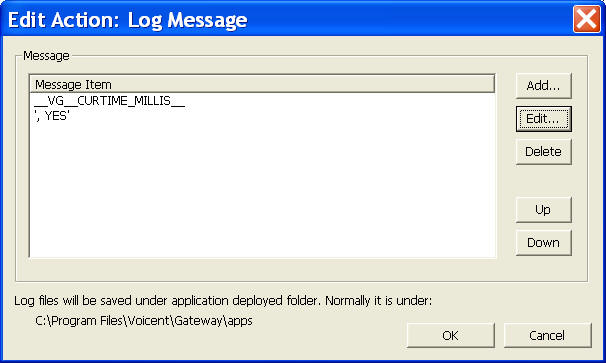
You could choose to print out any text string and any variable value. For example, __VG_CURTIME_MILLIS__ is a system variable containing information about the current time in milliseconds; and ', YES' is an literal text string.
Action Execution Time
All actions of an element are executed immediately when the call flow is transitioned to the element. For example, when a caller pressed 1 for Yes and the call flow is transitioned to Yes element, the Log action defined here is executed before the element prompt message is played back.
If there are more than one action defined, the actions are executed in the same order as defined the action list.
Deployment
You can use the sample application as is. To deploy the application, select Deploy > Submit to Gateway... from the program main menu. If the menu item is grayed out, select Validate... first.
If you have multiple IVR application deployed, please see IVR select application for more information.
Once deployed, restart the gateway to have the changes to take effect.
The log file is saved under your deployed application folder, normally it is:
C:\Program Files\Voicent\Gateway\apps\<your app name>\logs