
IVR Studio: Inbound IVR
Voice mail is a built-in feature of Voicent Flex PBX software. Here we simply use it as a sample to demonstrate some basic ideas of IVR Studio Design. This sample is basically an answering machine. Other voice mail samples in this library will extend the feature set, such as adding more mailboxes and voicemail to email.
The Call Flow
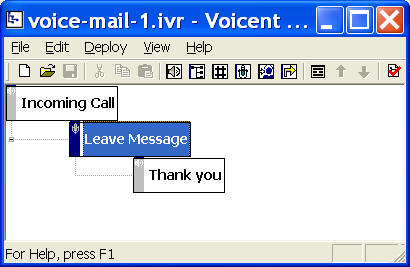
The call flow is straightforward for an answering machine applications. It consists of one Record Element and one Prompt Element. A record element sets the system in recording mode. A caller can end the pound key (#) or simply hang up to finished the recording. A Prompt Element plays the prompts defined in the element.
You can open this design by selecting File > Samples > Voicemail from the program main menu.
Setup voicemail prompt
A record element (Leave Message element in the call flow diagram) requires audio message to prompt a caller to start recording. You can use three types of prompts described in the Auto Attendant sample. Here we are going to use a text-to-speech engine to generate an audio file. Please note that you need Voicent Text-to-Speech PlugIn.
Select Audio > Create Audio by Text-to-Speech... from the program main menu. Simply type in any text, and click Save to Wave... button.
To set the newly generated audio file for an element prompt, right mouse click on an element, then choose Properties... from the popup menu. Click the Prompt tab, then click the New... button. Click the Browse button to select the newly created audio file.
Deployment
You can use the sample application as is. To deploy the application, select Deploy > Submit to Gateway... from the program main menu. If the menu item is grayed out, select Validate... first.
If you have multiple IVR application deployed, please see IVR select application for more information.
Once deployed, restart the gateway to have the changes to take effect.
When an incoming call is answered by the gateway, the application will execute the record element, which first plays the Prompt, and then wait for caller to record his or her message. If the caller presses #, it then executes the Prompt Element, which plays the thank-you message.
The voice mail message is saved on your computer as an audio file. You can find the audio file under the folder:
C:\Program Files\Voicent\Gateway\apps\<deployment name>\recording