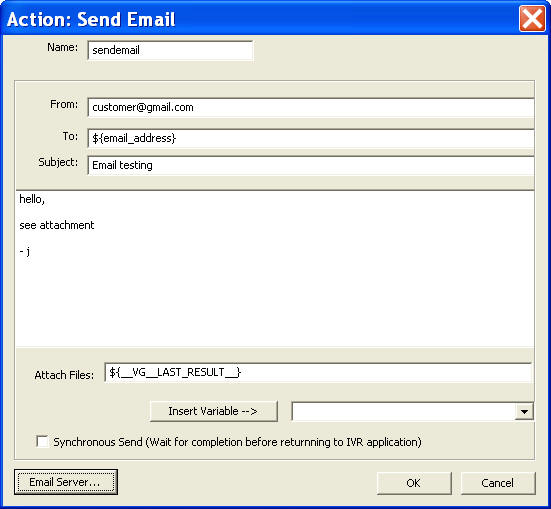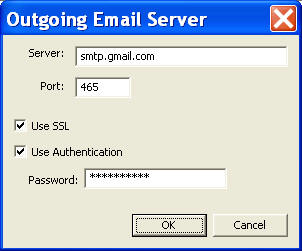
This sample extends the Voicemail 1 sample by
adding more mailboxes and forwarding voicemail to email.
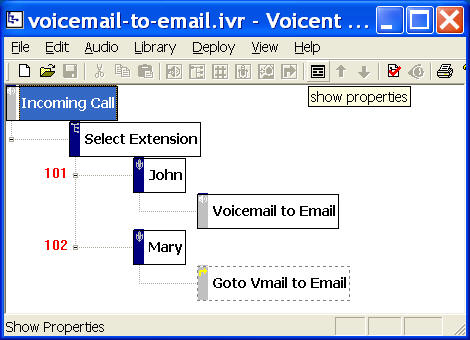
The call flow consists of one Choice
element, two Record elements, and two Prompt elements. The choice element (Select
Extension)
asks a caller to select the mail box number (101 or 102). If
the caller chooses extension 101 for example, the call flow is
transitioned to a Recording element (John). Here the caller
can leave a voice message. Once done (press # or hang up the
phone), the call flow transitioned to a Prompt element
(Voicemail to Email), which runs a Java program to forward the
recorded message to John's email.
You can open this design by selecting Library >
Voicemail to Email from the program main menu.
You can extend Voicent IVR platform by
integrating it with web sites or any other software products.
There are two basic methods (actions): HTTP or Java. HTTP is
the protocol for the Internet. It is best used for web site
integration. Java is a general programming language. It can be
used to extend Voicent IVR platform with virtually no limit.
In this sample, we use the Java method.
Open the property page (Right
mouse click on an element, then choose Properties...
from the popup menu.) for the Voicemail to Email element, select the
Action tab, then click the New button. (For existing action,
choose the Edit button.)
The Java action for Voicemail to email is
shown below:

Here the Java action is invoking Java
method send of the class
voicent.sample.MyEmailSender. The class is included in the
Jar file: testjar.jar and it also requires additional jar
file: activation.jar and mail.jar.
The send method has two argument.
The first one of of type java.lang.String, and the
value is __VG__LAST_RESULT__, (which is the recorded voice
message file); the second argument is a variable
email_address, which we set to the voicemail owner's email
address when the call flow is transitioned to the voicemail
box.
When the system executes the action, it
first loads all the Jar files; then it loads the Java Class
specified and creates an instance of the class, and finally
executes the specified method with the arguments.
If you want to check or use return values
of a Java action, the return must be the Properties Class. The returned value can be access in the IVR
Studio using the dot notation. For example, if the Java action
is named send_email, and the status return code is
named "status_code", then it can be accessed
as send_email.status_code. We can use the return value
for prompt or as an argument for other actions.
The Java class is included here. You can
find the jar file inside the folder: C:\Program
Files\Voicent\IVRStudio\Samples.
package voicent.sample;
import javax.mail.*;
import javax.mail.event.*;
import javax.mail.internet.*;
import javax.activation.*;
import java.util.Properties;
import java.util.Date;
import java.io.*;
public class MyEmailSender
{
// replace the following with your settings
// call your ISP to find our the information
static final String SMTP_SERVER = "your ISP smtp server name";
static final int SMTP_PORT = 25; // or 587 if your ISP blocks port
25
static final String FROM_ADDRESS = "youremail@yourcompany.com";
static final String USER_NAME = "your smtp username";
static final String USER_PASS = "your smtp account password if
required";
public MyEmailSender()
{
Properties props = System.getProperties();
props.setProperty("mail.smtp.host", SMTP_SERVER);
// set to false if no password required
props.setProperty("mail.smtp.auth", "true");
conn_ = Session.getInstance(props, null);
}
public boolean send(String wavefile, String emailto)
{
try {
Message msg = new MimeMessage(conn_);
msg.setFrom(new InternetAddress(FROM_ADDRESS));
msg.setSubject("New Voicemail");
msg.setSentDate(new Date());
// prepare message
Multipart mp = new MimeMultipart();
MimeBodyPart mbp1 = new MimeBodyPart();
mbp1.setText("You have a new voicemail");
mp.addBodyPart(mbp1);
MimeBodyPart mbp2 = new MimeBodyPart();
FileDataSource fds = new FileDataSource(wavefile);
mbp2.setDataHandler(new DataHandler(fds));
mbp2.setFileName(fds.getName());
mp.addBodyPart(mbp2);
msg.setContent(mp);
Transport trans = conn_.getTransport("smtp");
trans.connect(SMTP_SERVER, SMTP_PORT, USER_NAME, USER_PASS);
javax.mail.Address[] to = InternetAddress.parse(emailto,
false);
trans.sendMessage(msg, to);
// remove the recording wave file
File wavef = new File(wavefile);
wavef.delete();
return true;
}
catch (Exception e) {
e.printStackTrace();
return false;
}
}
// test and customize this program independent of IVR Studio
// requires Javamail libraries: mail.jar and activation.jar
public static void main(String args[])
{
if (args.length < 2)
return;
MyEmailSender sender = new MyEmailSender();
sender.send(args[0], args[1]);
}
private Session conn_ = null;
}
1). To use this class, you first need to
configure the following values correctly:
static final String
SMTP_SERVER = "your ISP smtp server name";
static final int SMTP_PORT = 25; //
or 587 if your ISP blocks port 25
static final String FROM_ADDRESS = "youremail@yourcompany.com";
static final String USER_NAME = "your smtp username";
static final String USER_PASS = "your smtp account password if
required";
You should be able to get these
information from your ISP.
2). Once set, you should compile this
class:
javac -classpath %CP% -d .
MyEmailSender.java
Your class path %CP% should include the
javamail jars, activation.jar and mail.jar. These jar files
can be found at: C:\Program Files\Voicent\Gateway\lib.
Please note that the dot after -d
refers to the current directory.
Please note that javac is not
included in the installed JVM (Java Virtual Machine). Java
compiler (javac) is included in Java SDK, which can be
downloaded from Sun Microsystem's website.
3). Once compiled, you should test the
class:
java -classpath %CP%
voicent.sample.MyEmailSender <any file> <your email address>
If successful, an email should be sent
to the address <email>.
You can use the sample application as a
starting point for your own voicemail to email application. To deploy the
application, select Deploy > Submit to Gateway... from
the program main menu. If the menu item is grayed out, select
Validate... first.
If you have multiple IVR application deployed, please see
IVR select application for more information.
Once deployed, restart the gateway to have the
changes to take effect.
When an incoming call is answered by the
gateway, the caller is asked to choose a mail box number; the
system then prompts the caller to record his message; once the
recording is finished, an email with the voice message
attached is sent to the voicemail owner.
|