
ivr software, ivr platform, ivr development

Advantages of Voicent's

      IVR Studio

  IVR Platform and Application

  • One time purchase, use forever
  • No monthly fee, no contract
  • Setup in less than 10 minutes
  • Works on any PC
  • Feature rich and yet easy to use
  • You can try it before you buy it
  •   IVR Platform and Application

    Find out more

Learn More

 IVR Platform and Application

What is IVR?

IVR - short for Interactive Voice Response - automates interaction with telephone callers. Most people are familiar with IVR applications. These applications allow users to retrieve information such as bank balances, flight schedules, and movie show times from any telephone and without the help of a live operator.

What is Inbound, Outbound IVR?

Most IVR systems are for inbound applications. Voicent IVR solution also supports outbound applications, such as BroadcastByPhone autodialer.

How is Voicent's IVR different?

Traditional IVR systems use proprietary software and expensive telephony hardware. Voicent IVR system is based on VoiceXML, an Internet open standard, so it is easy to integrate with other software applications. It can be deployed on any PC with a voice modem, an off-the-shelf standard computer component. That makes the cost of having your own IVR system extremely low.

How do you integrate IVR with existing systems?

Voicent's IVR platform supports two integration methods--HTTP and Java. With HTTP, an Internet protocol for the World Wide Web, the system can easily connect to any website. For other applications, any program written in Java can be easily integrated using Voicent's IVR software.

Why should I integrate my phone and CRM systems?

Integrating a CRM (Customer Relationship Management) system enables agents to quickly gain access to customer information on inbound and outbound calls, increasing operational efficiency and providing an improved customer experience. For example, with Voicent TelephonyCRM, all calls with caller ID are automatically saved. When a customer calls back, a screen popup with customer profile and call history is displayed on an agent's computer. Based on the customer's category, it can further direct which IVR application to use to answer the call, meaning the call can be automatically transferred to a specific person or department.

What can I do with IVR & Text-to-Speech capabilities?

A flexible IVR system can deliver dynamically generated content, such as account balances, when interacting with callers. The information is relayed to the caller by using a Text-To-Speech (TTS) engine, which reads aloud text in specified data fields.

IVR Samples

IVR Samples Library - Auto Attendant

Anyone involved in business communications today is familiar with auto attendants, and businesses both large and small can easily take advantage of the technology. When a call is answered by Auto-attendant, prerecorded voice messages are played to the caller offering them a menu of choices for directing their call. "Welcome to ACME Company. For sales press 1, for service press 2, to speak to our operator press 0". Once the caller has made their choice, the call is routed to the appropriate ringing extension, where they will be connected to the called party, or presented with yet another series of choices.

This sample is also captured in the following video demo:

Video Demo: Design an Auto Attendant IVR Application

The Call Flow

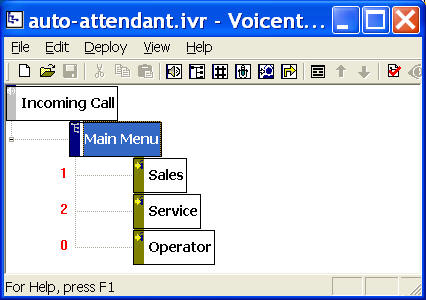
The call flow is straightforward for auto-attendant applications. It consists of one Choice Element and a few Call Transfer Elements. A Choice element is used to present a caller with choices or a menu.  A Call transfer element causes the current call to be transferred to another phone number, or transfer using the same line and pop up an alert window on a computer.

You can open this design by selecting Library > Auto-Attendant from the program main menu.
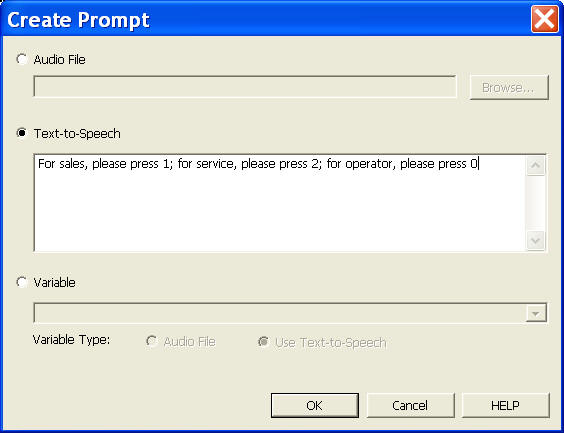
Setup menu prompt

The choice element (Main Menu element in the call flow diagram) usually requires audio message to prompt a caller to press certain keys. You can use three types of prompts:

1. Pre-recorded audio files

The format of the audio file needs to be: PCM 8KHz, 16 bit, mono. This format is the global standard for telephone communications. For more information about audio, please see Audio Quality and Recording FAQ.

2. Text using text-to-speech

You need Voicent Text-to-Speech PlugIn for automatic voice generation. You can use any TTS engine/voice with the PlugIn.

3. Variable: either audio file or text

The variables are dynamic generated items, such as a caller input of credit card number. These items are usually collected during run time.

To set the prompt for an element, right mouse click on an element, then choose Properties... from the popup menu. Click the Prompt tab, then click the New... button.
Deployment

You can use the sample application as is. To deploy the application, select Deploy > Submit to Gateway... from the program main menu. If the menu item is grayed out, select Validate... first.

If you have multiple IVR application deployed, please see IVR select application for more information.

Once deployed, restart the gateway to have the changes to take effect.

When an incoming call is answered by the gateway, the application will execute the transfer element. A popup window will be displayed on your computer screen. If you have Enterprise Edition, you can have the window popup on a any computer. The caller will hear your on hold message. If the on hold message is finished before the call is answered by a human, it will play the message again.

To answer the call, pickup the phone that is connected to the same modem phone line, click the ANSWER button on the popup window. When done, click the Release button.

IVR Platform and Design Tools
Easy, Fast, Affordable Communication Tools!

Voicent IVR Studio

  • Both Inbound IVR and Outbound IVR
  • Works with VOIP/SIP/Skype/PSTN
  • Standard based IVR platform
  • Works on any Windows PC
  • Easy and flexible setup
  • Point-and-click GUI design
  • It is really easy!